Understanding Inky: your email safety banners
Inky Pro is the email security service Bastion IT runs in front of your mailbox. This page explains the banners it adds, what to do with each one, and why we run it on top of what Microsoft and Google already provide.
What Inky is and why you are seeing banners
Every email you receive is checked before it reaches you, including mail from colleagues, and every email you send is checked on the way out. Mail from outside your organisation gets a coloured banner at the top telling you what Inky found. Internal mail only gets a banner when something looks wrong.
The banner is the point. Most email filters work silently and either deliver a message or block it. Inky does that too, but it also shows you its verdict on every external email so you can make a better decision in the two seconds you spend deciding whether to click. Nearly all of the fraud we deal with for clients starts with one person clicking one link or paying one invoice that looked right. The banner is there for that moment.
What Inky checks on each message:
- Whether the sender is who they claim to be, using the sending domain's authentication records (SPF, DKIM and DMARC) rather than just the display name.
- Whether the email visually impersonates a brand. Inky renders the message as an image and compares logos and layouts against a library of real brands, so a fake Microsoft, Xero or Australia Post email is caught even when the words are clean.
- Whether the sender is new to your organisation, or is a lookalike of someone you already deal with.
- Every link, which is rewritten so it is checked again at the moment you click it, not just when the email arrived.
- Attachments and QR codes.
Banners also appear on some internal email. A yellow or red banner on a colleague's message is a signal that their account may have been compromised, which is one of the most common ways invoice fraud starts.
You do not need to install anything. Inky works in Outlook, Gmail, on your phone and in the browser, because the banner is part of the email itself.
Because you are on Inky Pro, outgoing mail is covered too. If you send an email containing something sensitive, such as card or bank account details, Inky may ask you to confirm before it goes, or send it encrypted through a secure portal. You will get a note in your inbox explaining what happened.
The four banner colours
The colour tells you how much care to take. Read the one line of explanation under the colour, because it tells you why the banner is there.
| Colour | What Inky found | What to do |
|---|---|---|
| Grey (External) | Nothing suspicious. The sender is outside your organisation and is not yet on our trusted list. | Carry on as normal. If the email is unexpected, treat it with the same care you would a cold phone call. |
| Blue (Known External) | A supplier or partner we have added to your trusted list, and the email passed authentication, so it really came from them. | Carry on. Still question anything unusual, such as changed bank details. |
| Yellow (Caution) | Something unusual: a first-time sender, a request for payment or sensitive information, a lookalike address, or bulk marketing mail. | Do not click or reply until you have checked. Verify by phone or in person if the email asks for money, passwords or account changes. |
| Red (Danger) | Phishing, malware, a spoofed colleague or a known malicious link. Many are quarantined before you ever see them. | Do not click, open or reply. Use the Phish link in the banner to report it, then delete it. |
Red banners appear on well under one percent of mail. Yellow is the one you will see most often, especially in the first month after switching on, while Inky learns who your organisation normally talks to.
Grey: External

The shield icon, the word External and the sender's real address. Report links along the bottom.
Blue: Known External

Same layout, blue shield. This sender is on your organisation's trusted list and the email passed authentication.
Yellow: Caution

A warning triangle, the word Caution, and the reasons on the second line, here Graymail and First-Time Sender. Click Details to see all of them. The report links change to Not Spam, Spam and Phish.
Red: Danger
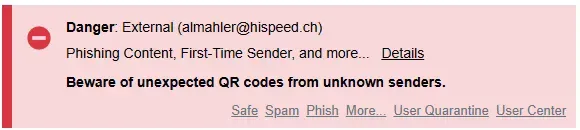
A stop icon, the word Danger, the reasons, and a one-line plain-English warning under them. Here it is Phishing Content from a First-Time Sender with a QR code.
Every banner has the same three parts: the colour and label on the left, the sender's real address in brackets, and the report links. The real address matters. A display name can say anything, but the address in the banner is the one the email actually came from. The sender addresses shown here are examples. Yours will show your real senders.
What to do with each banner, and how to report
Every banner carries one-click report links, usually Safe, Spam, Phish and Graymail, plus a Details link. Which links you see depends on what Inky found. Clicking one asks you to confirm, then it is done. The first time you report you may be asked to sign in with your normal Microsoft 365 or Google account so Inky knows whose preference it is recording.
- Grey or blue banner and you were expecting the email: do nothing. Read and reply as normal.
- Yellow banner on a newsletter or marketing email: click Graymail. Inky will treat that sender as bulk mail from now on, and you can have it filed to a separate folder.
- Yellow banner on a real sender you deal with: click Safe. Inky stops warning you about that sender in your mailbox.
- Yellow banner on an email asking for money, bank details, a password or a gift card: stop. Phone the person on a number you already have, not one from the email. Then report it as Phish if it was fake, or Safe if it was real.
- Red banner: click Phish, then delete. Do not forward it to colleagues to ask if it is real. Forwarding strips the banner and spreads the risk. Report it and let us check.
- Unsure about anything: use the Details link to see exactly what Inky flagged, or send it to Bastion IT support and we will tell you.
If you click a link that Inky considers dangerous, you will land on an Inky warning page instead of the website. It shows a screenshot of where the link goes and why it was blocked. Unless you are certain, go back and contact us.
Reporting matters beyond your own mailbox. Reports land in the Inky dashboard that Bastion IT monitors, so a phish reported by one person can be blocked for everyone in your organisation.
Why banners fade as you use Inky
The yellow banners are heaviest in the first month and then drop away. Here is what makes them go, and what does not.
- Inky learns who you normally talk to. During the first 30 days it builds a map of your organisation's regular contacts. Once a sender is part of that pattern, the first-time sender warning stops on its own.
- Clicking Safe on a sender stops the caution warnings for that sender in your mailbox. It is a personal setting, so it does not change what your colleagues see, and it does not need a ticket to us.
- Clicking Graymail moves a sender's mail into the bulk category and, if you turn it on in your Inky dashboard, into its own folder, out of your inbox.
- Bastion IT can add a supplier or partner as a Known External Sender for your whole organisation. Their mail then shows the blue banner instead of grey or yellow, provided it passes authentication. Tell us who your regular suppliers are and we will add them.
What does not go away is the grey External banner, and that is deliberate. Inky does not let individual users switch banners off, because the day a trusted sender's account is compromised is the day you most need to see the warning. A supplier you have emailed for ten years can still be hijacked, and the yellow banner on their next invoice is the only thing that looks different.
Inky keeps a small banner on external mail even after you mark a sender safe. That is a deliberate trade-off, and the next section explains why.
Why we add a filter on top of Microsoft 365 or Google Workspace
Microsoft and Google both include spam and malware filtering, and we leave it switched on. We add Inky on top because the built-in filters are tuned for the whole world, and the attacks that cost our clients money are tuned for you.
- The built-in filters are what most mailboxes have, so they are what attackers test their emails against before sending. A second engine that uses a different method is one the attacker has not tuned for.
- They judge senders mostly by address and reputation. Inky also looks at the email the way you do, as a rendered picture, and matches logos and layouts against real brands. That is how a convincing fake Microsoft, Xero, myGov or Australia Post email gets caught when the text and the links are all brand new.
- They do not know who your organisation normally deals with. Inky builds that map and flags a first-time sender, a lookalike of your accountant's domain, or an internal name on an outside address.
- Links change after delivery. A link that was clean when the email arrived can be switched to a phishing page an hour later. Inky rewrites links so they are checked again at the moment you click.
- The built-in filters are silent. When they are unsure they deliver the mail with nothing to show for it. Inky tells you what it saw, on the message, at the moment you are deciding.
The cost of getting this wrong is not abstract. In the Australian Signals Directorate's 2024-25 reporting, email compromise and business email compromise fraud were the two most reported cybercrimes for Australian businesses, and the average self-reported loss for a small business was $56,600 per incident. One wrong invoice payment covers many years of filtering.
Why we upgraded
Some clients are coming to Inky Pro from Avanan, others from the filter we ran before. Either way it is an upgrade. Inky Pro adds internal mail protection, checks on outgoing mail with encryption when it is needed, link checks at the moment you click, and brand impersonation detection on top of what you had. Nothing changed in how your mail is delivered, where it is stored, or what you pay for Microsoft 365 or Google Workspace.
Common questions
Can I turn the banners off?
Not individually, and we do not switch off the caution or danger banners for anyone. If the grey External banner is a problem for a specific role, talk to us and we will look at it for your organisation.
My customer is getting my emails with a banner on them.
They are not. Banners are stripped from anything you reply to or forward. If a customer sees one, their own organisation runs Inky too and it is their banner, not yours.
The banner is on an email from a colleague.
Internal mail is normally banner-free. A yellow or red banner on an internal sender means Inky thinks the message did not really come from them, or their account is behaving oddly. Call them before acting, and report it to us.
I marked a sender Safe and the banner is still there.
Safe removes the caution for that sender. The grey External banner stays on all outside mail by design. If the yellow banner keeps coming back for the same sender, there may be more than one reason being flagged. Click Details and send us the screenshot.
Newsletters I want are landing in a Graymail folder.
Open the email, click Not Spam or Not Graymail in the banner, and that sender goes back to your inbox.
I clicked a link and got an Inky warning page.
Good, that is the system working. Go back. If you believe the link is genuine, contact us and we will check it before you proceed.
I reported something by mistake.
Reporting is reversible. Open the email and choose the opposite option, or tell us and we will fix the entry.
Who do I contact?
Bastion IT support on 1300 900 222 or support@bastionit.com.au. For anything involving a payment request, call us rather than emailing, and do not pay until we have confirmed.